

How to Charge a Chromebook Without a Charger: 7 Safe Methods
Last updated: July 30, 2026
Quick answer: If your Chromebook charges through USB-C, the safest substitute is a reputable USB-C Power Delivery charger, power bank, car adapter, monitor, dock, or portable power station that can provide the wattage your Chromebook requires. For many models, 45W to 65W is a practical target, but the correct number is the wattage printed on the original adapter or listed in the Chromebook manual.
If your Chromebook uses a round barrel-style charging port, do not connect a random USB cable or universal tip. Use the original adapter or an exact replacement with the correct voltage, connector size, polarity, and sufficient wattage. Away from a wall outlet, you can plug that correct adapter into a portable power station's AC outlet.

Losing a Chromebook charger does not always mean the laptop is unusable. The difficult part is not finding a cable that physically fits. It is confirming that the replacement power source supports the right charging protocol, voltage profile, cable rating, and output power.
This guide explains how to identify what your Chromebook needs, which emergency charging methods are dependable, why some phone chargers produce a “low-power charger” warning, and how to keep a Chromebook running during travel, school, camping, or a power outage.
Can You Charge a Chromebook Without Its Original Charger?
Yes, provided the replacement power source is electrically compatible with the Chromebook. An original charger is usually the easiest option because its connector, charging protocol, voltage, and wattage have already been matched to the laptop. A replacement can work just as well when those requirements are also met.
There are two main Chromebook charging designs:
| Charging design | How to recognize it | Safe alternatives | Main risk |
|---|---|---|---|
| USB-C charging | A small, symmetrical oval port. The original charger normally has a USB-C connector. | USB-C PD wall charger, PD power bank, USB-C monitor or dock, PD car charger, or portable power station with compatible USB-C output. | A cable may fit even when the source does not provide enough power or the required USB Power Delivery profile. |
| Barrel-plug charging | A round DC input that may have a center pin or manufacturer-specific connector. | Original adapter, manufacturer-approved replacement, or an exact-spec replacement powered from a wall outlet or portable power station. | Wrong voltage, connector dimensions, or polarity can prevent charging or damage the Chromebook. |
| Manufacturer-specific connector | A non-USB connector used on some older devices. | Original or model-specific replacement adapter. | A physically similar connector may use different electrical specifications. |
Important distinction: A higher-watt USB-C PD charger is generally acceptable because the Chromebook and charger negotiate a supported power level. A higher-voltage barrel adapter is not an equivalent upgrade. Barrel-plug voltage and polarity must match the Chromebook's requirements.
Check These Three Things Before Connecting Anything
1. Confirm which port actually accepts charging
Do not assume that every port shaped like USB-C can charge the Chromebook. Check the original charger, the user manual, the manufacturer's support page, or the markings beside the port. Some devices use USB-C for data and video, while charging support depends on the hardware configuration.
If the original charger also uses USB-C, that is strong evidence that the Chromebook accepts USB-C Power Delivery. If the original adapter ends in a round plug, use the barrel-plug instructions instead.
2. Find the original charger's output specification
Look on the charger label for a line marked Output. A USB-C charger may list several voltage and current combinations, such as:
Example USB-C PD output profiles:
5V ⎓ 3A
9V ⎓ 3A
15V ⎓ 3A
20V ⎓ 2.25A
The maximum profile in this example is 20 volts multiplied by 2.25 amps, which equals 45 watts.
If the adapter says 20V and 3.25A, its maximum output is 65W. If you no longer have the adapter, search the exact Chromebook model number on the manufacturer's support site rather than relying only on the laptop's screen size or brand.
3. Check the cable as well as the power source
A 65W charger connected through a low-capability or damaged cable may charge slowly, disconnect repeatedly, or fail to reach the expected power. USB-IF guidance emphasizes that USB-C cables do not all have the same capabilities. Current certified USB-C cables may be marked for 60W or 240W power capability.
For most 45W Chromebooks, a reputable 60W-rated USB-C to USB-C cable is sufficient. For a Chromebook that can accept more than 60W, use a cable clearly rated for the higher power level.
Source: USB-IF cable and connector guidance.
How Many Watts Does a Chromebook Charger Need?
Many everyday Chromebooks use a 45W or 65W charger, but there is no single wattage that applies to every model. Compact tablets and entry-level devices may need less, while higher-performance Chromebook Plus models, large-screen devices, or models with faster charging may use more.
The best rule is simple: match or exceed the original adapter's wattage while using a compatible USB-C PD source. Do not choose a replacement solely because the connector fits.
| Available charging power | Likely behavior | Best use | Limitations |
|---|---|---|---|
| 5W–15W | May not start charging, or may add power only while the Chromebook is shut down. | Last-resort emergency attempt. | The battery can continue draining while the Chromebook is running. |
| 18W–20W | Possible slow charging on some low-power models. | Emergency charging with the Chromebook asleep or powered off. | Often triggers a low-power warning and may not keep up with active use. |
| 30W | May work for compact models and light workloads. | Basic browsing, document editing, or charging while off. | Charging may be slow when the processor, display, or connected accessories draw more power. |
| 45W | A common full-speed charging level for many Chromebooks. | Routine charging and normal school or office work. | Confirm that the source supports a compatible USB-C PD profile. |
| 65W | Provides useful headroom for many current Chromebooks. | Charging while working, video calls, travel, and connected accessories. | The Chromebook will not necessarily draw the full 65W. |
| 100W or more | Usually safe with a standards-compliant USB-C PD charger. | One charger shared among laptops, tablets, and phones. | It will not make a 45W-limited Chromebook charge at 100W. |
Chromium's documented 45W USB-C charging design supports USB Power Delivery communication and profiles up to 20V at 2.25A. Source: Chromium 45W USB-C charging adapter documentation.
The missing number: net charging power
The wattage printed on the charger is not the same as the wattage reaching the battery. The Chromebook first uses some of the incoming power to run the display, processor, Wi-Fi, speakers, keyboard lighting, USB devices, and other hardware. Only the remaining power is available to recharge the battery.
For example, suppose a Chromebook receives 30W from a replacement charger:
- If the Chromebook is using 10W, roughly 20W remains for battery charging before other losses.
- If it is using 25W during a video call, only a small amount remains for charging.
- If the charger negotiates less than 25W, the battery may continue to drain even though the charging symbol is visible.
This is why closing games, reducing display brightness, disconnecting unnecessary USB devices, or shutting the Chromebook down can make a weak charger appear to work better.
Why a 100W charger may not charge faster than a 65W charger
The charger's printed wattage is its maximum capability, not the amount it forces into the laptop. A Chromebook designed to accept 45W may continue drawing about that amount from a 65W, 100W, or 140W USB-C PD charger. Battery temperature, charge level, system workload, and the Chromebook's internal charging controller can further reduce the rate.
Charging also normally slows as the battery approaches full capacity. Therefore, doubling the charger's maximum rating does not cut the total charging time in half.
Seven Safe Ways to Charge a Chromebook Without Its Original Charger
Use a USB-C Power Delivery Wall Charger
For a USB-C Chromebook, a reputable USB-C PD wall charger is normally the closest substitute for the original charger. Choose one that matches or exceeds the original wattage and includes the voltage profile required by the Chromebook.
How to do it
- Confirm that the Chromebook supports charging through USB-C.
- Find the original charger's wattage or the manufacturer's recommended replacement specification.
- Choose a USB-C PD charger rated for at least that wattage.
- Use a suitable USB-C to USB-C cable rather than a USB-A to USB-C phone cable.
- Connect the charger directly to the Chromebook without an unverified hub or adapter.
- Check the battery icon and wait several minutes to confirm the battery percentage is increasing.
Best for: Home, school, hotels, offices, and routine replacement charging.
Use a USB-C Monitor or Dock with Power Delivery
Some USB-C monitors and docking stations can send display data, USB data, and charging power through one cable. This can keep a compatible Chromebook powered without its original charger.
What to check
- The monitor or dock must specifically list USB-C Power Delivery output.
- The advertised wattage must be enough for the Chromebook.
- The USB-C cable must support the required power and the desired display or data connection.
- The dock's own power adapter must be connected when required.
A dock advertised as “100W PD” may reserve some power for the dock itself and connected accessories. Check the actual downstream laptop-charging wattage, not only the adapter's total rating.
Best for: Desks, classrooms, shared workstations, and one-cable display setups.
Use a USB-C Laptop Power Bank
A power bank can charge a Chromebook when no wall outlet is available, but it must be designed for laptop charging. A typical phone power bank with a 10W, 18W, or 20W output may be too weak.
Minimum features to look for
- USB-C Power Delivery output.
- At least 45W output for many Chromebooks, or the wattage specified for your model.
- A supported 20V output profile when the Chromebook requires it.
- Enough battery capacity, measured in watt-hours, for the recharge you expect.
- A USB-C cable rated for the power level.
Do not judge a power bank only by its milliamp-hour number. That number is usually based on the internal battery voltage rather than the Chromebook's charging voltage. Watt-hours provide a more useful comparison between the power bank and the Chromebook battery.
Best for: Commuting, flights, campus use, meetings, and short mobile work sessions.
Charge Directly from a Portable Power Station's USB-C Port
A portable power station is useful when you need more capacity than a pocket-sized power bank can provide. Models with a 45W, 65W, or 100W USB-C PD output can charge compatible Chromebooks directly without turning on the AC inverter.
How to do it
- Turn on the power station and enable its DC or USB output if the model requires it.
- Check the label beside the USB-C port. Use the port that provides the required PD wattage.
- Connect a rated USB-C to USB-C cable directly between the station and Chromebook.
- Confirm that the Chromebook shows charging and that its battery percentage increases.
- Keep the power station dry, shaded, and adequately ventilated.
Direct USB-C charging usually avoids the extra conversion step required when the station converts battery power to 120V AC and the Chromebook adapter converts it back to DC.
Best for: Camping, remote work, extended travel, school emergency kits, and power outages.
Use a Portable Power Station's AC Outlet
An AC outlet is the most flexible portable option when the Chromebook uses a barrel connector, requires more USB-C power than the station's direct port supplies, or must be charged with a model-specific adapter.
How to do it
- Use the original Chromebook adapter or an exact compatible replacement.
- Plug the adapter into the power station's AC outlet.
- Turn on the station's AC output.
- Connect the adapter to the Chromebook.
- Confirm normal charging and check that neither the adapter nor cable becomes unusually hot.
This method uses more energy than direct USB-C charging because the system performs additional power conversions. It remains the safest portable method for many older barrel-plug Chromebooks because the correct laptop adapter controls the final voltage delivered to the computer.
Best for: Older Chromebooks, barrel-plug models, outages, and situations where the correct adapter is available but a wall outlet is not.
Use a USB-C PD Car Charger
The vehicle's built-in USB port may provide only modest phone-charging power. A better approach is a USB-C PD car charger designed for a 12V accessory socket.
What to check
- The car charger must provide enough output on a single USB-C port.
- The output should support the voltage profile required by the Chromebook.
- Multiport chargers may divide total power when two devices are connected.
- The 12V socket and charger should be in good condition and firmly connected.
For example, a car charger marked “65W total” may provide 45W from one port and 20W from another, or it may reduce the laptop port when both are used. Read the port-specific output description.
Do not leave a Chromebook, power bank, charger, or portable power station inside a hot parked vehicle. High cabin temperatures can reduce charging performance and create avoidable stress on batteries and electronics.
Best for: Road trips, RV travel, field work, and charging while the vehicle is running.
Use an Exact-Spec Replacement Adapter
When the original charger is lost or damaged, a correct replacement is usually the best long-term solution. This is especially important for barrel-plug Chromebooks.
For a USB-C replacement, match:
- USB Power Delivery support.
- The Chromebook's required wattage.
- The needed voltage profile.
- A suitable USB-C cable rating.
For a barrel-plug replacement, match:
- Output voltage exactly.
- Required current or a higher available current rating.
- Connector outer and inner dimensions.
- Connector polarity.
- The exact Chromebook model or manufacturer compatibility listing.
A barrel adapter's current rating can generally be equal to or higher than the Chromebook requires because the laptop draws the current it needs. The voltage, connector, and polarity must still match.
Best for: Permanent replacement and older Chromebook models.
Emergency-only option: a low-power phone charger
A phone charger may provide enough power to slowly charge some USB-C Chromebooks while they are shut down, asleep, or using very little power. It is not a dependable replacement unless it supports USB-C PD and the Chromebook's required wattage.
When using a low-power charger:
- Shut down the Chromebook instead of using it while charging.
- Disconnect USB accessories.
- Use a USB-C to USB-C cable when the charger has a USB-C PD output.
- Check after 20 to 30 minutes to confirm that the battery percentage is actually rising.
- Stop using the setup if the charger, cable, or Chromebook becomes unusually hot.
A charging icon alone does not prove that the source is adding energy faster than the Chromebook is consuming it.
How to Charge a Chromebook with a Portable Power Station
A portable power station gives you two possible charging paths. Choosing the right one improves compatibility and may extend runtime.
| Charging path | Best for | Advantages | What to verify |
|---|---|---|---|
| Power station USB-C → Chromebook | USB-C PD Chromebooks within the port's wattage limit. | Fewer power conversions, fewer components, and no need to run the AC inverter. | USB-C PD wattage, required voltage profile, cable rating, and whether the station's DC output must be enabled. |
| Power station AC outlet → Chromebook adapter | Barrel-plug Chromebooks, model-specific adapters, or devices needing a different charging profile. | Broad compatibility and use of the Chromebook's intended adapter. | Correct adapter, station AC output, and total connected load. |
Direct USB-C is usually the first choice
If the power station's USB-C PD output matches the Chromebook, direct charging is normally simpler. The station supplies DC power directly to the Chromebook's charging controller instead of operating an AC inverter and a separate wall adapter.
Use AC when compatibility matters more than efficiency
AC charging is appropriate when:
- The Chromebook uses a barrel plug.
- The station's USB-C output is below the Chromebook's requirement.
- The Chromebook does not recognize the station's USB-C output.
- You need to use a manufacturer-specific charging adapter.
- The direct USB-C port is already needed for another device.
Do you need a 600W or 1,200W station for a Chromebook?
No. A Chromebook charger usually uses only a small fraction of a 400W, 600W, or 1,200W power station's AC output. The larger output rating becomes useful when you also want to run a router, monitor, television, CPAP machine, refrigerator, lights, or other equipment.
For Chromebook charging alone, battery capacity, USB-C output, weight, and portability matter more than a very large AC output rating.
For a broader compatibility check, see How to Know If a Portable Power Station Can Run Your Device.
Best UDPOWER Options for Chromebook Charging
The following recommendations are based on current specifications listed on the official UDPOWER product pages. The best model depends less on the Chromebook's immediate wattage and more on how many recharges, devices, and off-grid hours you need.
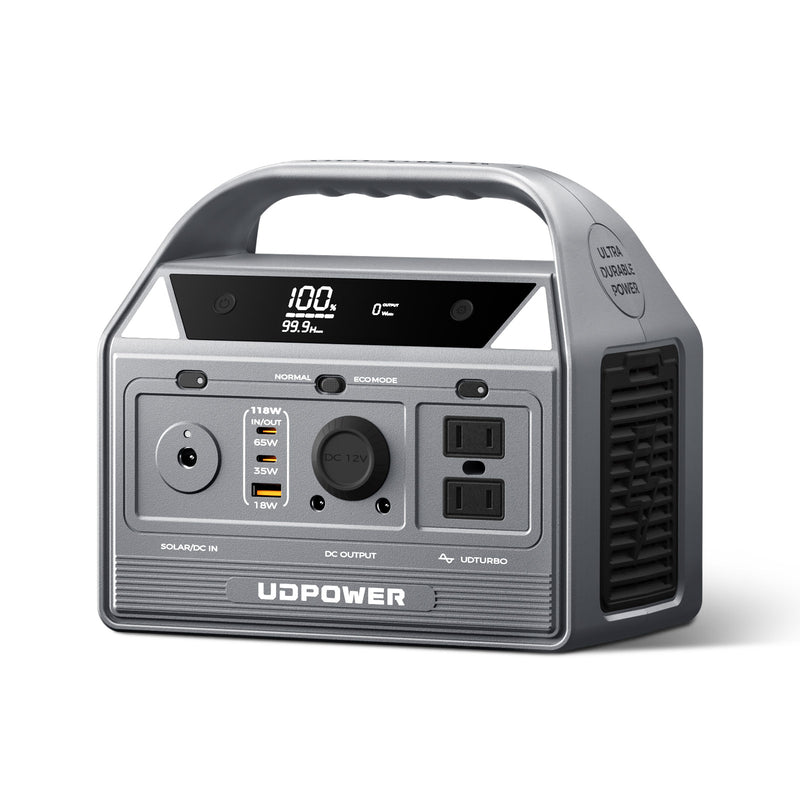
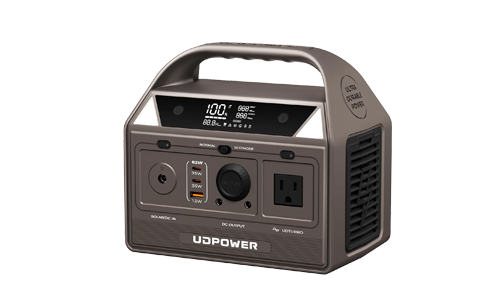
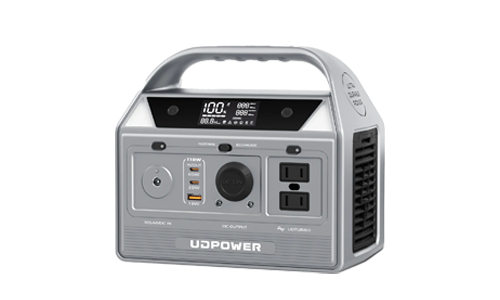
UDPOWER C400: Best for One Chromebook and Light Travel
The C400 is the most practical option when Chromebook charging, phone charging, cameras, lights, and other small electronics are the main priorities. Its compact size is easier to justify for a day trip or mobile workspace than a large home-backup station.
- Battery capacity: 256Wh
- AC output: 400W pure sine wave
- USB-C outputs: One 65W USB-C port and one 35W USB-C port
- Weight: Approximately 6.88 lb
- Battery chemistry: LiFePO4
- Best match: One USB-C Chromebook, phone, camera, router, or short mobile-work setup
Use the 65W USB-C port for a Chromebook that requires up to 65W. For a barrel-plug Chromebook, connect the correct laptop adapter to one of the C400's AC outlets.
View UDPOWER C400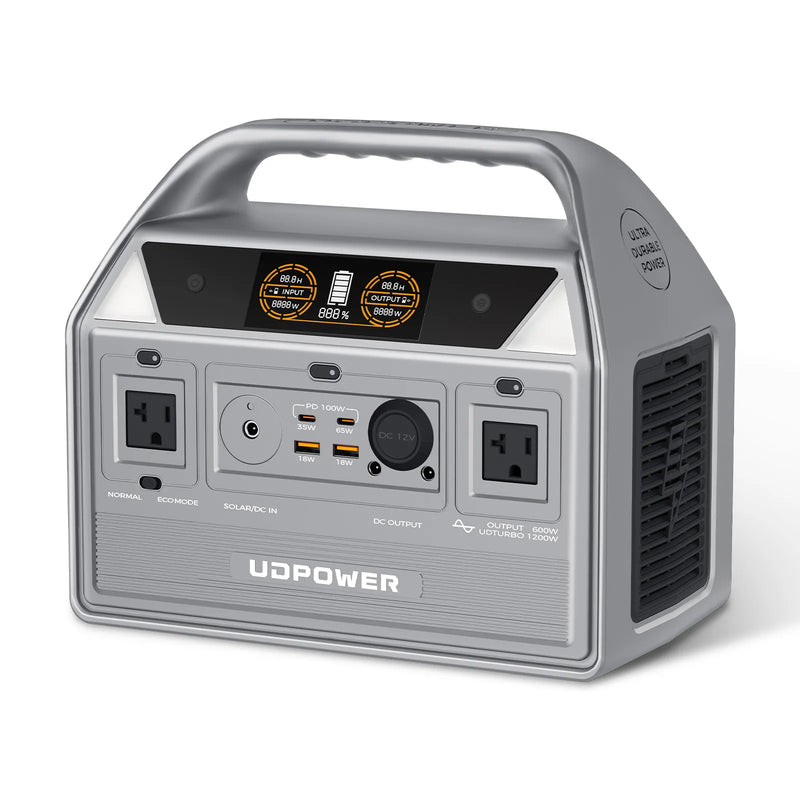
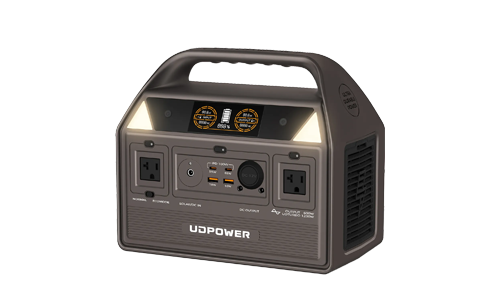
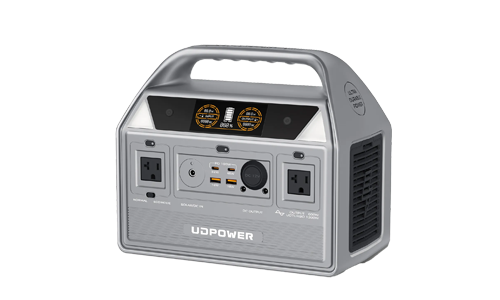
UDPOWER C600: Best for Multi-Day Chromebook Backup
The C600 adds substantially more stored energy while remaining portable enough for travel, camping, or a small outage kit. It is a stronger match when the Chromebook must share power with a phone, Wi-Fi router, camera batteries, lighting, or another laptop.
- Battery capacity: 596Wh
- AC output: 600W rated output
- USB-C outputs: One 65W PD port and one 35W USB-C port
- Weight: Approximately 12.3 lb
- Battery chemistry: LiFePO4
- Best match: Several Chromebook recharges, multi-device travel, remote work, and basic outage backup
A 65W USB-C Chromebook can charge directly from the C600's PD port. The AC outlets remain available for barrel-plug Chromebooks or other small equipment.
View UDPOWER C600 Read the 600Wh Runtime Guide
UDPOWER S1200: Best for a Chromebook Plus Home-Office Backup
The S1200 is larger than necessary for one Chromebook, but it makes sense when the real goal is keeping an entire work or study setup running. Its capacity can support Chromebooks alongside routers, monitors, phones, lighting, a refrigerator, or other essentials.
- Battery capacity: 1,190Wh
- AC output: 1,200W rated output
- USB-C outputs: Two USB-C outputs with up to 100W total listed in the official specifications
- AC outlets: Five on the current grey version
- Weight: Approximately 26 lb
- Additional feature: UPS response time of 10 milliseconds or less
- Best match: Chromebook, router, monitor, lighting, and longer home-office outage support
For direct Chromebook charging, use the compatible USB-C output. For a desktop monitor or barrel-plug laptop adapter, use the pure sine wave AC outlets while keeping the total load within the station's limits.
View UDPOWER S1200 See What a 1200W Power Station Can RunSimple selection rule: Choose the C400 when portability matters most, the C600 when you need several days of small-device charging, and the S1200 when the Chromebook is part of a larger outage or home-office setup.
Compare current capacities, outputs, weights, and use cases on the UDPOWER power station comparison page.
How Many Times Can a Portable Power Station Recharge a Chromebook?
Chromebook battery capacities vary by model. Compact devices may have batteries around 40Wh, while larger models may use 50Wh, 60Wh, 70Wh, or more.
A practical planning formula is:
The estimates below use 90% conversion efficiency as a consistent planning assumption. Real results can be lower because of charging taper, cable losses, temperature, battery condition, standby use, and energy consumed while the Chromebook is running.
| UDPOWER model | Rated capacity | 40Wh Chromebook | 50Wh Chromebook | 60Wh Chromebook | 70Wh Chromebook |
|---|---|---|---|---|---|
| C400 | 256Wh | About 5.8 recharges | About 4.6 recharges | About 3.8 recharges | About 3.3 recharges |
| C600 | 596Wh | About 13.4 recharges | About 10.7 recharges | About 8.9 recharges | About 7.7 recharges |
| S1200 | 1,190Wh | About 26.8 recharges | About 21.4 recharges | About 17.9 recharges | About 15.3 recharges |
These are energy-budget estimates rather than guaranteed laboratory results. Charging a Chromebook while actively using it reduces the number of complete battery refills available.
Example: a 50Wh Chromebook and the C400
The C400 contains 256Wh of rated capacity. Applying a 90% planning efficiency gives approximately 230.4Wh of usable charging energy.
If the Chromebook is being used during each charging session, part of that energy powers the computer directly. The result may be several long work sessions rather than exactly 4.6 battery cycles.
Which Charging Method Should You Choose?
| Your situation | Best first choice | Backup choice | What to avoid |
|---|---|---|---|
| USB-C Chromebook at home | 45W–65W USB-C PD wall charger that meets the model's specification | USB-C monitor or powered dock with sufficient PD output | Unrated cables and weak USB-A phone adapters |
| USB-C Chromebook while traveling | Laptop-grade USB-C PD power bank | USB-C PD car charger | Relying on a vehicle's low-power built-in USB port |
| Camping or remote work | Portable power station with compatible USB-C PD output | Correct Chromebook adapter connected to the station's AC outlet | Exposing the station or Chromebook to rain, direct heat, or an enclosed vehicle |
| Barrel-plug Chromebook | Exact manufacturer-compatible replacement adapter | Correct adapter powered by a portable power station | Random universal tips, wrong voltage, or improvised wiring |
| Only a phone charger is available | Power the Chromebook off and test whether the battery percentage rises | Borrow a suitable USB-C PD laptop charger | Assuming a visible charging symbol means the battery is gaining power |
| Home power outage | Portable power station sized for the Chromebook and other essential devices | Laptop power bank reserved for the Chromebook | Buying by inverter wattage alone without checking battery capacity and USB-C output |
Charging Methods and Adapters You Should Avoid
- Do not connect a random barrel adapter. A plug that physically fits can still have the wrong voltage, polarity, or inner dimensions.
- Do not use homemade battery wiring. A Chromebook requires regulated power and proper charging control.
- Do not expect a basic USB-A port to provide laptop-level power. Most USB-A phone chargers and vehicle ports are not suitable Chromebook replacements.
- Do not stack several unverified adapters. Multiple converters create more failure points and make electrical compatibility harder to confirm.
- Do not use frayed, loose, bent, or heat-damaged cables. Replace cables that disconnect when moved or show exposed conductors.
- Do not place the Chromebook on bedding while charging. Use a firm surface that does not block ventilation.
- Do not charge wet equipment. Disconnect the power source and allow the Chromebook, cable, and charger to dry fully before inspection.
- Do not assume more wattage fixes every problem. A damaged charging port, failing battery, incompatible PD profile, or defective cable may still prevent charging.
- Do not rely on reverse charging from a phone. A phone battery is much smaller and usually cannot provide the sustained laptop-level output needed for useful Chromebook charging.
If the Chromebook's charging port is loose, discolored, corroded, physically damaged, or unusually hot, stop testing different chargers. The device may need professional inspection rather than a more powerful adapter.
What to Do When the Chromebook Still Will Not Charge
The Chromebook says “low-power charger connected”
This usually means the Chromebook recognizes an incoming power source but does not receive enough usable power for reliable charging under the current workload.
- Check the charger's wattage and its single-port USB-C output.
- Use a USB-C to USB-C cable rated for the required power.
- Connect directly instead of charging through a hub.
- Disconnect phones, drives, monitors, and other USB accessories.
- Reduce display brightness and close demanding apps.
- Shut down the Chromebook and charge it for 30 minutes.
- Try a charger that matches the original adapter's wattage.
The battery drains while the charging icon is visible
The Chromebook is likely consuming more power than the charger is adding. This is common with low-watt phone chargers during video calls, streaming, Android apps, gaming, external-display use, or high screen brightness.
Use a higher-output USB-C PD source, reduce the workload, or charge while the Chromebook is powered off.
The Chromebook charges only when turned off
This strongly suggests that the power source is marginal. It provides enough energy for slow battery charging when the computer is not running, but not enough to power the system and recharge the battery simultaneously.
Replace it with a charger that meets the Chromebook's recommended wattage.
The charger works on a phone but not on the Chromebook
A phone may accept a low-voltage or lower-watt charging profile that is insufficient for the Chromebook. USB-C describes the connector shape, not a guarantee that every charger, cable, and device supports the same power profiles.
The Chromebook stops charging near 80%
This may be normal battery-protection behavior rather than a charger failure. Supported Chromebooks can use Adaptive charging or a Charge limit that keeps the battery near 80% to reduce time spent at full charge.
Check Settings → System preferences → Power. Google notes that Adaptive charging and Charge limit can prevent the battery from immediately reaching 100%.
Source: Google Chromebook Help: Use Optimized charging.
The Chromebook does not react to any charger
- Inspect the charging port for visible debris or damage without inserting metal tools.
- Test a known-good cable and compatible charger.
- Try another wall outlet.
- Disconnect the charger from both the outlet and Chromebook, then reconnect it firmly.
- Allow a deeply discharged device to charge for at least 30 minutes before trying to turn it on.
- Follow the manufacturer's hardware-reset instructions for the exact Chromebook model.
- Contact the Chromebook manufacturer if the battery, charging port, or internal power system may be faulty.
Google's general Chromebook troubleshooting guidance recommends reconnecting the charger and allowing the device to charge before moving to additional hardware troubleshooting. Source: Google Chromebook Help: Fix hardware and system problems.
How to Make a Weak Emergency Charger Work More Effectively
These steps do not turn a phone charger into a full Chromebook charger, but they can reduce the computer's power demand long enough to preserve data or gain a small amount of battery:
- Save your work and shut down the Chromebook.
- Disconnect external drives, a mouse, keyboard, monitor, and USB hub.
- Use the charger's highest-output USB-C port.
- Use the shortest reliable cable available within your practical setup.
- Keep the Chromebook and charger on a hard, ventilated surface.
- Leave the device untouched for at least 20 to 30 minutes.
- Turn it on briefly and check whether the battery percentage increased.
- If the percentage did not rise, stop relying on that charger and locate a compatible PD source.
If you only need enough power to submit an assignment, send a message, or recover unsaved work, keeping the Chromebook shut down during most of the charging period is more effective than trying to use it continuously on an undersized adapter.
Practical Chromebook Charging Kits by Use Case
School or classroom backup kit
- 45W or 65W USB-C PD charger
- 60W-rated USB-C to USB-C cable
- Small laptop-grade power bank
- Label showing the student's Chromebook model
Road-trip charging kit
- USB-C PD car charger with sufficient single-port output
- Rated USB-C cable
- Portable power station for charging when the vehicle is parked
- Original Chromebook adapter for AC backup
Camping or off-grid work kit
- Portable power station with a 65W or higher USB-C PD output
- Correct Chromebook cable and adapter
- Compatible folding solar panel for replenishing the station
- Dry storage bag for cables and adapters
- Power budget for the Chromebook, phone, router, lights, and other devices
Home-outage work kit
- Power station sized for the Chromebook and internet equipment
- USB-C PD charging cable
- Router and modem power information
- LED task light
- Charged phone or mobile hotspot
To estimate a larger computer setup, see How Many Watts Does a Computer Use?
Frequently Asked Questions
Can I charge a Chromebook with a phone charger?
Sometimes, but most phone chargers are too weak for normal Chromebook use. A low-power charger may work only while the Chromebook is shut down or sleeping. A USB-C PD charger that matches the Chromebook's required wattage is a much better choice.
Can I charge a Chromebook with any USB-C charger?
No. The connector may fit, but the charger must support USB Power Delivery, the required voltage profile, and enough wattage. The USB-C cable must also be rated for the power level.
Can a 20W USB-C charger charge a Chromebook?
It may slowly charge some models while they are off, but 20W is below the normal requirement of many Chromebooks. The battery may continue draining during active use.
Is a 30W charger enough for a Chromebook?
A 30W USB-C PD charger may be enough for certain compact Chromebooks or light use, but it can charge slowly under load. Check the original adapter or manufacturer specification before treating 30W as a permanent replacement.
Can I use a 65W charger instead of a 45W Chromebook charger?
Yes, when both the charger and Chromebook use standards-compliant USB-C Power Delivery. The Chromebook negotiates a supported power level and does not automatically draw the charger's full 65W capacity.
Can I use a 100W USB-C charger on a Chromebook?
Generally yes, provided it is a reputable USB-C PD charger and the cable is suitable. A Chromebook limited to 45W or 65W will not charge at 100W simply because the charger can provide that amount.
Can I charge a Chromebook from a power bank?
Yes. Choose a laptop-grade power bank with USB-C PD output, the required voltage profile, and at least the wattage recommended for the Chromebook. Small phone power banks may not provide enough output.
Can a portable power station charge a Chromebook?
Yes. A USB-C Chromebook can charge directly from a compatible PD port. A barrel-plug model can use its correct adapter through the power station's AC outlet.
Is USB-C charging more efficient than using a power station's AC outlet?
Direct USB-C charging normally requires fewer conversion steps, so it can use the stored battery energy more efficiently. AC charging remains useful when the Chromebook requires a specific adapter or is not compatible with the station's direct USB-C output.
Can I charge a Chromebook through a USB-C hub?
Only when the hub supports USB-C Power Delivery pass-through and can deliver enough power after accounting for the hub and connected devices. For troubleshooting, connect the charger directly to the Chromebook first.
Why does my Chromebook say the charger is low power?
The Chromebook recognizes the source but is receiving less power than it needs for dependable charging under the current workload. The charger, cable, hub, or shared-port power allocation may be limiting the available wattage.
Why is my Chromebook losing battery while plugged in?
The computer is consuming power faster than the charger supplies it. Use a higher-watt USB-C PD charger, reduce the workload, disconnect accessories, or charge while the Chromebook is off.
Can I charge a Chromebook through HDMI?
No. HDMI is intended for audio and video signals and is not a Chromebook charging input.
Can I charge a Chromebook through USB-A?
A basic USB-A port normally does not provide the USB-C Power Delivery profiles used for laptop charging. It may provide a very small amount of power in some setups, but it should not be treated as a reliable Chromebook charging method.
Can I charge an older Chromebook with a USB-C cable?
Only if that Chromebook was designed to accept charging through USB-C. Older models with barrel connectors require the correct model-compatible adapter.
How do I find my Chromebook's required charger wattage?
Read the output label on the original adapter, check the Chromebook user manual, or search the exact model number on the manufacturer's support site. Multiply the maximum listed volts by amps to calculate watts when the wattage is not printed directly.
Why will my Chromebook not charge past 80%?
Adaptive charging or Charge limit may be enabled. Supported Chromebooks can intentionally hold the battery around 80% to reduce long-term battery wear. Check the Power section in System preferences.
What is the safest emergency method for a barrel-plug Chromebook?
Use the original or exact model-compatible adapter. When no wall outlet is available, plug that correct adapter into a portable power station's pure sine wave AC outlet.
Sources and Further Reading
- Google Chromebook Help: Fix hardware and system problems
- Google Chromebook Help: Use Optimized charging
- Chromium: 45W USB Type-C charging adapter control board
- USB-IF: Cables and Connectors
- UDPOWER C400 official specifications
- UDPOWER C600 official specifications
- UDPOWER S1200 official specifications
Related Articles


