Remote Work Setup: A Practical Guide to Comfort, Clear Calls, Stable Internet, and Backup Power
ZacharyWilliamRemote Work Setup Guide
Updated: April 22, 2026
The Short Answer
A good remote work setup is not just a desk, chair, and laptop. It is a setup that protects four things at the same time: your posture, your focus, your internet connection, and your power. For most people, that means a screen raised to a comfortable height, an external keyboard and mouse, front-facing light for calls, a stable router setup, and backup power for at least the router and laptop.
If you only make three upgrades, make these first: raise the screen, fix your lighting, and protect your workday with backup power for your internet gear. That order solves more real-life remote-work problems than chasing a prettier desk or a fancier webcam.
Fast rule of thumb: a light single-laptop setup usually fits a smaller portable power station, a full desk with one monitor is more comfortable on a mid-size unit, and a heavier dual-screen or shared home-office setup needs more battery headroom.
What Actually Matters in a Remote Work Setup
Most remote workers do not lose productivity because they picked the wrong desk color. They lose it because the setup breaks down in ordinary ways: neck strain after lunch, bad camera lighting during meetings, Wi-Fi hiccups during screen sharing, or a power outage that kills the router right in the middle of a call.
The best home-office setup is the one that still feels good and still works at 4 p.m., not the one that looks best at 9 a.m.
| Priority | What good looks like | What usually goes wrong | Practical fix |
|---|---|---|---|
| Posture | Your screen is high enough, shoulders stay relaxed, wrists stay neutral | Laptop too low, chair too soft, keyboard too far away | Raise the screen and add an external keyboard and mouse |
| Meetings | Your face is clearly lit, audio sounds clean, camera angle looks natural | Backlighting, echo, relying on the laptop mic | Put light in front of you and use a headset or USB mic |
| Internet | Calls stay stable, uploads finish, screen sharing does not stutter | Weak router placement, Wi-Fi congestion, ISP drops | Use Ethernet if possible, then improve router placement, then keep a hotspot backup |
| Power | Your laptop, router, and key desk gear stay on through a blip or outage | Router dies first, laptop battery is not enough, no runtime plan | Back up router first, then laptop, then monitor |
What to Fix First If Your Setup Feels Bad
If your remote work setup already exists and you are not starting from zero, do not replace everything. Fix the high-return items first.
| If this is your pain point | Fix this first | Why it matters |
|---|---|---|
| Neck pain or hunching | Laptop stand or monitor riser | It changes your entire posture immediately |
| Wrist or shoulder fatigue | External keyboard and mouse placed close together | It stops the constant reach and bend that builds strain |
| You look dim or washed out on calls | Simple front-facing desk light | Lighting improves camera quality more than most webcam upgrades |
| Your calls break up | Ethernet cable or router repositioning | Stable connection beats raw headline speed for meetings |
| You lose work during outages | Backup power for router and laptop | A dead router ends the workday fast, even if the laptop still has battery |
Helpful references: OSHA monitor placement guidance and CDC/NIOSH work-from-home ergonomics guidance.
Desk Ergonomics That Hold Up All Day
The simplest ergonomic test is this: can you work for a few hours without constantly adjusting your shoulders, craning your neck, or dropping your wrists onto a hard desk edge? If not, the setup still needs work.
Official workstation guidance generally points the same way: keep the top of the monitor at or slightly below eye level, keep the screen in front of you, and keep your wrists close to neutral instead of bent up or down.
| Area | What to aim for | Quick self-check |
|---|---|---|
| Monitor | Top of screen at or slightly below eye level, centered in front of you | You are not looking down all day |
| Viewing distance | Roughly arm's length for most setups | You can read comfortably without leaning in |
| Keyboard | Close enough that elbows stay near your sides | You are not reaching forward to type |
| Mouse | Right next to the keyboard at the same working height | Your shoulder is not floating outward all day |
| Chair | Feet supported, back supported, thighs relaxed | You do not slide forward after 30 minutes |
| Desk edge | No sharp pressure against your forearms | You are not bracing your wrists on a hard edge |
If you work from a laptop every day, the most important upgrade is still the least glamorous one: raise the screen, then separate your hands from the screen with an external keyboard and mouse. That one change helps comfort, posture, and typing rhythm at the same time.
How Much Power a Remote Work Setup Really Uses
Remote work gear usually draws less power than people expect. The bigger mistake is not the total wattage. The bigger mistake is forgetting which device is truly mission-critical. For most remote workers, that device is the internet chain: modem, ONT, or router.
Use these as planning ranges, then confirm your own setup with adapter labels or a watt meter. If you want a deeper breakdown for laptops specifically, see How Many Watts Does a Laptop Use?.
| Device | Typical planning range | Notes for remote work |
|---|---|---|
| Laptop | 45W–100W | Actual draw changes with charging state, screen brightness, and workload |
| 24–27 inch monitor | 20W–60W | One monitor is easy to support; multiple displays add up fast |
| Wi-Fi router | Single digits to teens of watts | Many home routers stay under about 20W |
| Modem, gateway, or fiber ONT | 10W–25W | Do not forget the ONT if you have fiber |
| Phone charging | 5W–20W | Small individually, but easy to leave plugged in all day |
| LED desk light | 5W–15W | Usually low draw and worth it for call quality |
| Small desk fan | 20W–60W | Useful in warm rooms, but it meaningfully changes runtime |
For practical internet-backup planning, UDPOWER's Wi-Fi outage guide notes that many home routers run in the single digits to teens of watts, and complete modem-plus-router chains often land around 20W to 35W depending on the equipment.
Quick Runtime Formula
Runtime (hours) ≈ battery capacity (Wh) × 0.85 ÷ total load (W)
That 0.85 factor gives you a more realistic planning number instead of an overly optimistic lab-style estimate. For more detailed math, see Battery Runtime Basics: Watts to Watt-hours.
| Remote-work profile | Estimated load | C600 (596Wh) | S1200 (1190Wh) | S2400 (2083Wh) |
|---|---|---|---|---|
| Internet-only backup: modem/ONT + router | 25W | About 20.3 hours | About 40.5 hours | About 70.8 hours |
| Travel-light setup: laptop + router + phone | 60W | About 8.4 hours | About 16.9 hours | About 29.5 hours |
| Standard desk: laptop + monitor + router + light | 100W | About 5.1 hours | About 10.1 hours | About 17.7 hours |
| Call-heavy desk: laptop + monitor + router + light + charging overhead | 140W | About 3.6 hours | About 7.2 hours | About 12.6 hours |
These are planning estimates, not promises. Real runtime changes with brightness, charging behavior, video calls, battery reserve, and whether you keep adding “small” extras.
Best UDPOWER Picks for Remote Work
This is the point where a lot of remote-work guides get vague. Here is the practical answer: choose by your actual desk load and by how expensive downtime is for you.

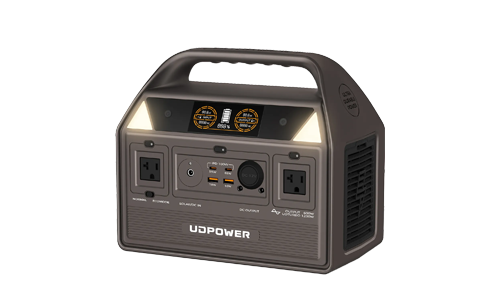
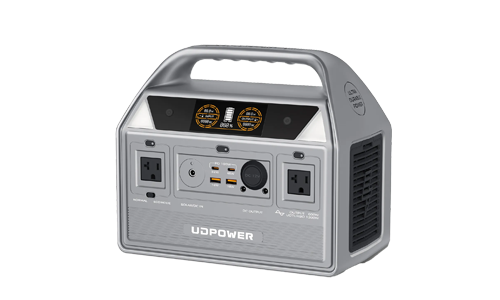
UDPOWER C600
If your remote work setup is mostly a laptop, router, phone, and maybe one small extra, the C600 is the practical sweet spot. It is much easier to move around the house than a larger unit, and it gives enough capacity for real work instead of just emergency phone charging.
- 596Wh capacity
- 600W rated output, 1200W peak
- 2 AC outlets, 65W PD port, 35W Type-C, USB-A ports, and 12V car outlet
- LiFePO4 battery with 4,000+ cycles
- 12.3 lbs in the current collection listing
Why it fits remote work: it can easily cover a network-only backup setup overnight, and it is strong enough for a light one-person desk during shorter outages.
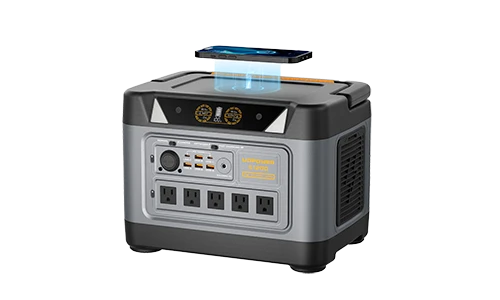
UDPOWER S1200
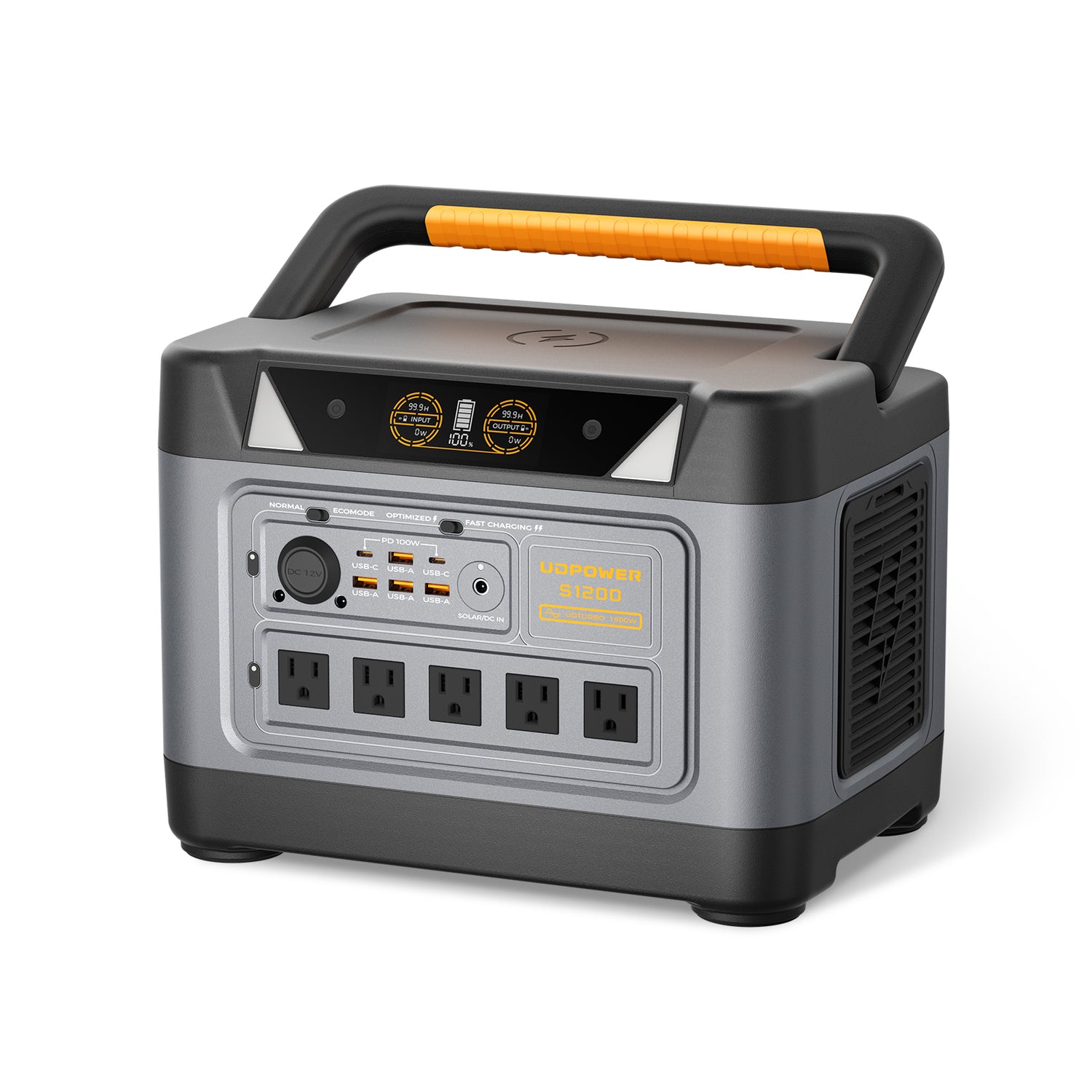
The S1200 is the most balanced choice for people whose income depends on staying online. It is large enough to feel comfortable instead of tight, and the official product page specifically positions it as a UPS-capable unit for devices like computers and routers.
- 1190Wh capacity
- 1200W rated output, 1800W surge
- Fast AC charging in about 2 hours
- UPS function for brief interruptions
- Up to 15 devices supported at once on the official page
- 5-AC model available, plus a separate 3-AC white version
- 26.0 lbs on the current homepage listing
Why it fits remote work: it is the most comfortable size for a real desk setup with router backup, a laptop, and one monitor without doing mental math every hour.
UDPOWER S2400
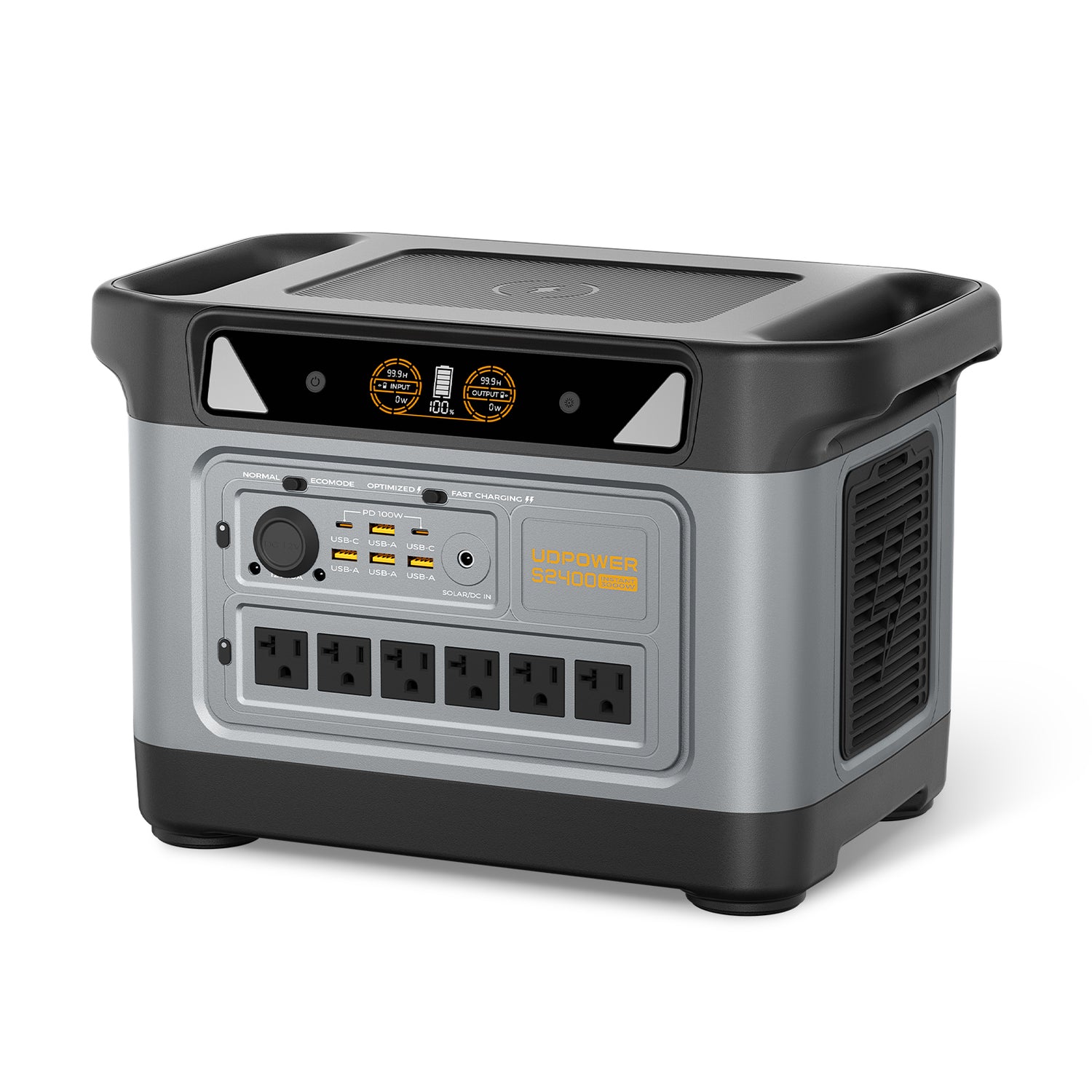
If your home office is heavier than average or you want outage headroom instead of close-call math, the S2400 is the better move. It is much more than a simple desk backup. It can support a serious remote-work setup and still leave room for household essentials.
- 2083Wh capacity
- 2400W rated output, 3000W surge
- 6 AC outlets plus 10 DC outputs
- UPSPRIME switchover listed at 10ms or less
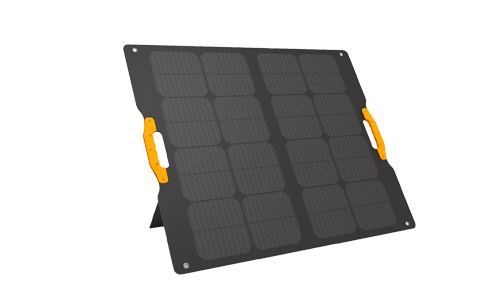
- Up to 400W solar charging on the official page
- 40.8 lbs on the current homepage listing
Why it fits remote work: it is the choice for dual-monitor setups, shared workspaces, long outage planning, or anyone who wants their remote-work backup to double as a more serious home-backup tool.
Internet, Video Calls, and Backup Plans
Most remote workers blame “slow internet” when the real problem is unstable upload, poor router placement, household congestion, or a modem and router that are not backed up during outages.
Zoom's official guidance shows that video-call bandwidth needs can rise quickly as you move from basic calls to HD group meetings. That is why stable upload and low interruption matter more than a big download number on a speed-test screenshot.
| Problem | Likely cause | What to do first |
|---|---|---|
| Calls freeze or your audio turns robotic | Weak Wi-Fi, upload congestion, router placement | Use Ethernet if possible, or move the router higher and more central |
| Wi-Fi is on but internet is gone | Modem or fiber ONT lost power, or ISP equipment is down | Make sure the full internet chain is backed up, not just the laptop |
| Everything gets worse in the evening | Household usage or local congestion | Reduce competing uploads, use router QoS if available, then consider plan changes |
| Your call drops the moment power blinks | No continuity backup for the network gear | Use a UPS or a power station with UPS-style support and test the setup once |
| Internet is fully down during a wider outage | Provider-side outage | Switch to a phone hotspot and keep your phone charged from backup power |
Helpful references: Zoom bandwidth guidance, UDPOWER's Wi-Fi outage guide, and UDPOWER's laptop wattage guide.
Video Call Quality: Buy This Before That
- Fix lighting before you buy a better webcam.
- Use a headset or a simple USB mic before you obsess over camera specs.
- Use Ethernet before you pay for a faster internet plan.
- Keep your background simple before you buy decorative desk accessories.
UPS vs Portable Power Station for Remote Workers
This is where a lot of people buy the wrong thing. A UPS is mainly about continuity. A portable power station is mainly about runtime.
| If your main pain point is... | Better first tool | Why |
|---|---|---|
| Brief power blips that reboot your router or desktop | UPS | A UPS is designed for near-instant handoff |
| Multi-hour outages during your workday | Portable power station | You need battery capacity, not just a few minutes of ride-through time |
| You get both blips and longer outages | Use both, or use a power station with UPS-style support | One tool protects continuity; the other protects endurance |
For a deeper decision framework, read Portable Power Station vs UPS for Home Backup. If you are also comparing batteries against gas units during outages, see Portable Power Station vs Generator for Power Outages.
Common Remote Work Setup Mistakes
- Using a laptop flat on the desk all day and calling it “good enough.”
- Backing up the laptop but forgetting the modem, ONT, or router.
- Buying a webcam before fixing front lighting.
- Assuming more internet speed automatically means better calls.
- Leaving extra chargers, speakers, and desk gadgets plugged in during an outage.
- Choosing a power unit only by watt rating instead of watt-hours and actual runtime.
- Skipping the one test that matters most: unplugging wall power once and watching what stays on.
FAQ
What is the best remote work setup for most people?
The best setup for most people is a raised screen, external keyboard and mouse, one good light in front of the face, stable internet, and backup power for the router and laptop.
Do I need a monitor to work from home comfortably?
Not always, but many people work longer and more comfortably with one properly positioned external monitor. It is especially helpful for spreadsheets, writing, meetings, and multitasking.
Is a laptop battery alone enough for power outages?
Usually not. The laptop may survive, but your internet chain may not. If the modem, ONT, or router goes down, the workday can still end even though the laptop is alive.
How large a power station do I need for remote work?
A lighter setup can fit a unit like the C600. A full one-monitor desk is more comfortable on the S1200. A heavier or shared home-office setup is a better match for the S2400.
Can a portable power station safely run a laptop and monitor?
Yes, if the output rating covers the load and you follow the product instructions. For long sessions, it is smart to keep the setup simple and avoid unnecessary extra devices.
Should I use AC outlets or USB-C for a laptop?
Use the cleanest and most efficient option your laptop supports. USB-C can be very convenient for compatible laptops, while AC works well with the original charger.
What should I back up first during a workday outage?
Back up the router or modem chain first, then the laptop, then the monitor. That order protects communication and the ability to stay online.
Is solar charging useful for remote workers?
Yes, especially for longer outages, off-grid work, RV setups, or areas with unreliable power. It is less about one afternoon and more about extending usable runtime over a full day or multiple days.
Ready to Build a More Reliable Remote Work Setup?
Start by sizing your actual load, not by guessing. Then choose the smallest setup that still feels comfortable on a real workday.
View sizing guidance View portable power stations Get runtime guidanceWhy Trust This Guide
This guide focuses on ordinary remote-work conditions that actually break a workday: poor posture, unstable calls, weak internet backup, and underplanned battery runtime. Product details in the recommendation section are based on current UDPOWER product and collection pages, and the posture, call, security, and safety advice is aligned with current public guidance from OSHA, CDC/NIOSH, FTC, CISA, Zoom, and CDC generator safety resources.
Sources
- OSHA: Computer workstation monitor guidance
- CDC/NIOSH: Working from home ergonomics
- Zoom: Bandwidth guidance for meetings
- FTC: Securing internet-connected devices at home
- CISA: Multifactor authentication basics
- CDC: Generator carbon monoxide safety
- UDPOWER C600 product page
- UDPOWER S1200 product page
- UDPOWER S2400 product page
- UDPOWER laptop wattage guide
- UDPOWER Wi-Fi outage guide
- UDPOWER runtime estimator guide