How Do You Charge a Surface Pro?
Learn the safest and most practical ways to charge a Microsoft Surface Pro at home, in a car, during a power outage, or off-grid. This guide covers Surface Connect and USB-C charging, charger wattage requirements by model, portable power station runtime estimates, solar charging setups, common charging problems, and battery-care tips.
Latest update: June 18, 2026
How Do You Charge a Surface Pro?
Charge a Surface Pro with its Microsoft Surface Connect power supply, or use a USB-C Power Delivery charger if your model accepts charging through USB-C. Most recent 13-inch Surface Pro models need at least 39W or 60W, while Microsoft recommends 60W for fast charging on many newer versions. The 12-inch Surface Pro charges only through USB-C, needs at least 27W, and uses 45W for fast charging.
When no wall outlet is available, you can use a USB-C PD power bank, a portable power station, a suitable vehicle charger, or a solar-charged power station. The safest universal off-grid method is to plug the original Microsoft charger into a pure sine wave AC outlet on a portable power station.

Surface Pro Charging Options at a Glance
| Charging method | Works with | Recommended power | Best use | Main limitation |
|---|---|---|---|---|
| Microsoft Surface Connect charger | Models equipped with Surface Connect | Use the wattage specified for your model | Desk use, older models, maximum compatibility | Does not work with the USB-C-only 12-inch Surface Pro |
| USB-C PD wall charger | Surface Pro 7 and newer USB-C-capable models, Surface Pro X, and newer business models | 45W to 60W for most current models | Travel, shared chargers, lighter cable setup | A basic phone charger may be too weak |
| USB-C PD power bank | USB-C-charging models | Match the model’s minimum wattage; 60W or 65W is the safest general target | Short trips and mobile work | Many small power banks provide only 18W to 30W |
| Portable power station USB-C port | USB-C-charging models | Use a 60W, 65W, or 100W PD port | Camping, outages, remote work, longer runtime | You must use the high-output USB-C port rather than a lower-output port |
| Portable power station AC outlet | Every Surface Pro when used with its correct charger | Any quality station with sufficient pure sine wave AC output | Universal compatibility and older Surface models | Slightly more conversion loss than direct USB-C charging |
| Vehicle USB-C PD charger | USB-C-charging models | 45W to 65W or higher, depending on the model | Road trips and mobile work | The vehicle adapter must support USB Power Delivery, not only USB-A charging |
| Solar panel through a power station | Every Surface Pro when paired with the correct power station output | Panel charges the station; station charges the Surface | Off-grid work and extended camping | Do not connect a raw solar panel directly to the Surface Pro |
First, Identify Your Surface Pro Model and Charging Port
The correct charging method depends on which Surface Pro you own. Microsoft has used several charging systems across the Surface Pro family, so a charger that works perfectly with one generation may not work with another.
USB-C-only Surface Pro
The 12-inch Surface Pro introduced a major change: it charges through either of its USB-C ports and does not include the traditional Surface Connect charging port. Microsoft lists 27W as the minimum and 45W as the recommended fast-charging power.
Surface Pro models with both USB-C and Surface Connect
Many recent 13-inch models—including the Surface Pro 7, 7+, 8, 9, X, 10 for Business, 11th Edition, and 13-inch 12th Edition—can charge through USB-C or Surface Connect.
This gives you two practical options:
- Use Surface Connect at a desk or when you already have the correct Microsoft power supply.
- Use USB-C PD when traveling, sharing a charger, or charging from a power bank or portable power station.
Older Surface Pro models
Surface Pro 6 and earlier models do not support normal charging directly through a built-in USB-C port. Use the correct Surface Connect or Surface charging power supply. When you need off-grid power, plug that original charger into the AC outlet of a portable power station.
How to Charge a Surface Pro with Surface Connect
Surface Connect is Microsoft’s magnetic charging connector. It remains the simplest option for older Surface Pro models and is also available on many newer 13-inch versions.
Step-by-Step Instructions
- Place the Surface Pro on a stable, ventilated surface.
- Connect the AC cable to the Microsoft power supply if it is detachable.
- Plug the power supply into a working wall outlet, surge protector, or pure sine wave portable power station.
- Align the magnetic Surface Connect plug with the charging port on the side of the Surface Pro.
- Confirm that the connector light turns on and that Windows shows the battery as charging.
The connector is magnetic, but you should still check that it is fully seated. A connector that looks attached but is slightly misaligned may fail to charge or may disconnect when the cable moves.
How to Charge a Surface Pro with USB-C
USB-C charging is convenient, but the charger and cable must support USB Power Delivery. A cable that fits into the port is not automatically capable of delivering enough power.
Step-by-Step USB-C Charging
- Confirm that your Surface Pro supports charging through USB-C.
- Check the minimum and recommended wattage in the model table below.
- Choose a USB-C PD charger that meets or exceeds the recommended wattage.
- Use a quality USB-C-to-USB-C cable rated for at least 60W. A 100W or 240W e-marked cable offers more flexibility.
- Plug the cable into the charger’s highest-output USB-C PD port.
- Connect the other end to a USB-C port on the Surface Pro.
- Check the Windows battery icon to confirm that charging has started.
What Wattage Should You Buy?
For a charger that can cover most recent Surface Pro models, a reputable 65W USB-C PD charger is a practical choice. It meets the 60W recommendation used by many 13-inch Surface Pro models and is more useful than a 30W phone charger when the Surface is running demanding programs.
A 45W charger is suitable for the 12-inch Surface Pro and models for which Microsoft recommends 45W fast charging. It may still charge certain higher-power models, but it may be slower or unable to keep up during heavy use.
Is a 100W USB-C Charger Safe?
Yes, provided it is a standards-compliant USB-C PD charger and you use a suitable cable. The charger does not continuously force 100W into the Surface. The Surface and charger negotiate a supported voltage and current, and the device takes the power it is designed to use.
A 100W charger does not automatically make a Surface Pro charge faster than its supported rate. Its advantage is extra headroom and the ability to charge other higher-power laptops.
Can You Use a USB-A-to-USB-C Cable?
It is not a good Surface Pro charging solution. Microsoft warns that a lower-wattage charger or a USB-A charger used with a USB-A-to-USB-C cable may charge slowly or not at all and will not provide fast charging.
Surface Pro Charger Wattage by Model
The table below follows Microsoft’s current Surface Pro charging requirements. “Minimum wattage” is the power Microsoft lists for normal charging. “Recommended for fast charging” is the power level to target when the model supports fast charging.
| Surface Pro model | Charging connection | Minimum wattage | Recommended fast-charge wattage | Practical charger choice | Official source |
|---|---|---|---|---|---|
| Surface Pro 12-inch | USB-C only | 27W | 45W | 45W or 65W USB-C PD charger | Microsoft |
| Surface Pro 13-inch, 12th Edition, Snapdragon | USB-C or Surface Connect | 39W | 60W | 60W or 65W USB-C PD charger | Microsoft |
| Surface Pro for Business 13-inch, 12th Edition, Intel | USB-C or Surface Connect | 39W | 60W | 60W or 65W USB-C PD charger | Microsoft |
| Surface Pro for Business, 11th Edition, Intel | USB-C or Surface Connect | 39W | 60W | 60W or 65W USB-C PD charger | Microsoft |
| Surface Pro with 5G, 11th Edition, Snapdragon | USB-C or Surface Connect | 39W | 60W | 60W or 65W USB-C PD charger | Microsoft |
| Surface Pro, 11th Edition, Snapdragon | USB-C or Surface Connect | 39W | 60W | 60W or 65W USB-C PD charger | Microsoft |
| Surface Pro 10 for Business with 5G | USB-C or Surface Connect | 39W | 45W | 45W or 65W USB-C PD charger | Microsoft |
| Surface Pro 10 for Business | USB-C or Surface Connect | 39W | 45W | 45W or 65W USB-C PD charger | Microsoft |
| Surface Pro 9 with 5G | USB-C or Surface Connect | 39W | 60W | 60W or 65W USB-C PD charger | Microsoft |
| Surface Pro 9 | USB-C or Surface Connect | 60W | 60W | 60W or 65W USB-C PD charger | Microsoft |
| Surface Pro X | USB-C or Surface Connect | 60W | 60W | 60W or 65W USB-C PD charger | Microsoft |
| Surface Pro 8 | USB-C or Surface Connect | 60W | 60W | 60W or 65W USB-C PD charger | Microsoft |
| Surface Pro 7+ | USB-C or Surface Connect | 60W | No Microsoft fast-charge recommendation | 60W or 65W USB-C PD charger | Microsoft |
| Surface Pro 7 | USB-C or Surface Connect | 60W | No Microsoft fast-charge recommendation | 60W or 65W USB-C PD charger | Microsoft |
| Surface Pro 6 | Surface Connect only | 39W | No fast charge | Correct Microsoft Surface Connect supply | Microsoft |
| Surface Pro, 5th Gen, including LTE Advanced | Surface Connect only | 39W | No fast charge | Correct Microsoft Surface Connect supply | Microsoft |
| Surface Pro, 5th Gen, M3 configuration | Surface Connect only | 39W | No fast charge | Correct Microsoft Surface Connect supply | Microsoft |
| Surface Pro 4, Core M configuration | Surface Connect only | 24W | No fast charge | Correct Microsoft Surface Connect supply | Microsoft |
| Surface Pro 4 | Surface Connect only | 31W | No fast charge | Correct Microsoft Surface Connect supply | Microsoft |
| Surface Pro 3 | Surface Connect only | 31W | No fast charge | Correct Microsoft Surface power supply | Microsoft |
| Surface Pro 2 and Surface Pro 1st Gen | Original Surface charging port | 48W | No fast charge | Correct original Surface power supply | Microsoft |
Microsoft may revise its compatibility tables as new Surface devices are released. Check the linked official page before buying a replacement charger for a newly released model.
How to Charge a Surface Pro with a Portable Power Station
A portable power station is useful when you need more runtime than a small power bank can provide. It also gives you both USB-C and household-style AC charging options.
Method 1: Charge Directly from USB-C PD
- Turn on the portable power station.
- Activate its DC or USB output if the model requires it.
- Identify the station’s highest-output USB-C PD port.
- Connect a 60W-or-higher USB-C cable.
- Plug the other end into the Surface Pro.
- Confirm that the Surface is charging without a low-power warning.
Direct USB-C charging is usually the cleanest setup because it avoids using the station’s AC inverter and the Surface’s wall adapter. It also reduces the number of cables you need.
Method 2: Use the Original Microsoft Charger Through AC
- Turn on the power station.
- Enable its AC output.
- Plug the correct Microsoft Surface charger into the AC outlet.
- Connect the Surface Connect or USB-C end to the Surface Pro.
- Check that the Surface charger light and Windows battery indicator show normal charging.
This method works with practically every Surface Pro generation as long as you have the correct original charger. It is the best choice for a Surface Pro 6 or earlier model that cannot charge directly from USB-C.
Which Method Is Better?
| Factor | Direct USB-C PD | Original charger through AC outlet |
|---|---|---|
| Compatibility | Only Surface models that accept USB-C charging | Works with any model when paired with its correct charger |
| Number of components | One USB-C cable | Surface power supply plus AC cable |
| Efficiency | Generally better because the AC inverter is not needed | Includes DC-to-AC and charger conversion losses |
| Best for | Newer USB-C Surface models and travel | Older models, troubleshooting, and maximum compatibility |
| Common mistake | Using a 20W or 35W port instead of the station’s 65W or 100W port | Forgetting to switch on the station’s AC output |
Best UDPOWER Portable Power Stations for a Surface Pro
A Surface Pro is not a high-wattage appliance, so output power is rarely the limiting factor. The more important questions are how long you need to work, whether you are also powering a router or monitor, and how much weight you are willing to carry.
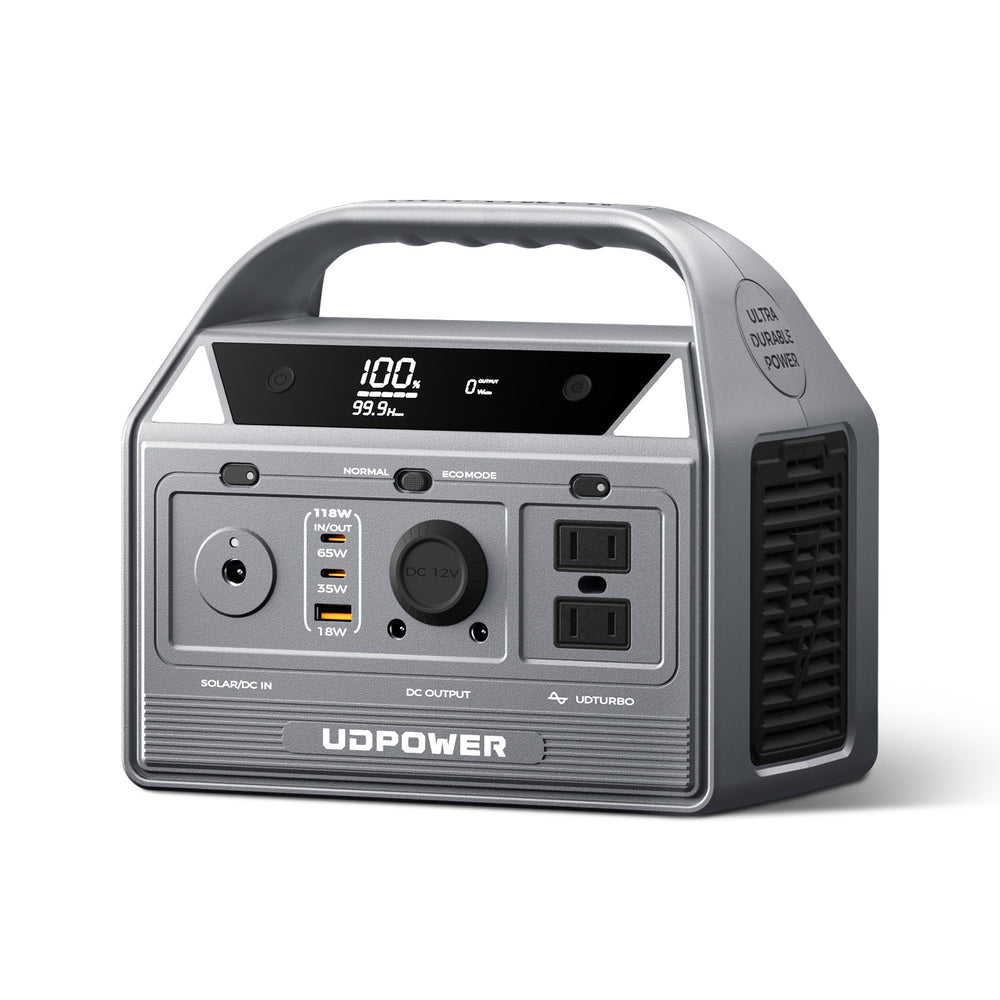
UDPOWER C400: Best for Travel and One Surface Pro
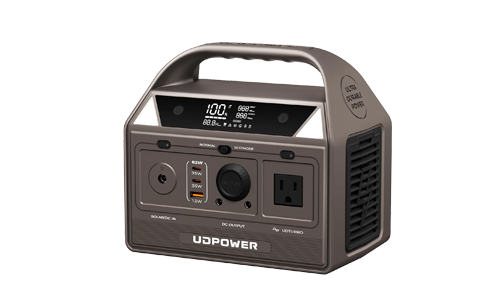
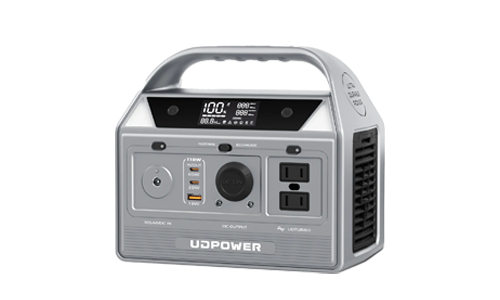
The C400 is the most portable choice for a Surface Pro, phone, hotspot, camera, or other small electronics. Its 65W USB-C port is suitable for models that need up to 60W, while the AC outlets let you use the original Microsoft charger.
- 256Wh LiFePO4 battery capacity
- 400W rated pure sine wave AC output
- Two USB-C ports with 65W and 35W output, 100W total
- Two AC outlets
- Approximately 6.88 lb
- Best for a Surface Pro, phone, and light mobile-work setup
Use the 65W port for direct Surface charging. The 35W port is better reserved for a phone, tablet, or smaller accessory.
View UDPOWER C400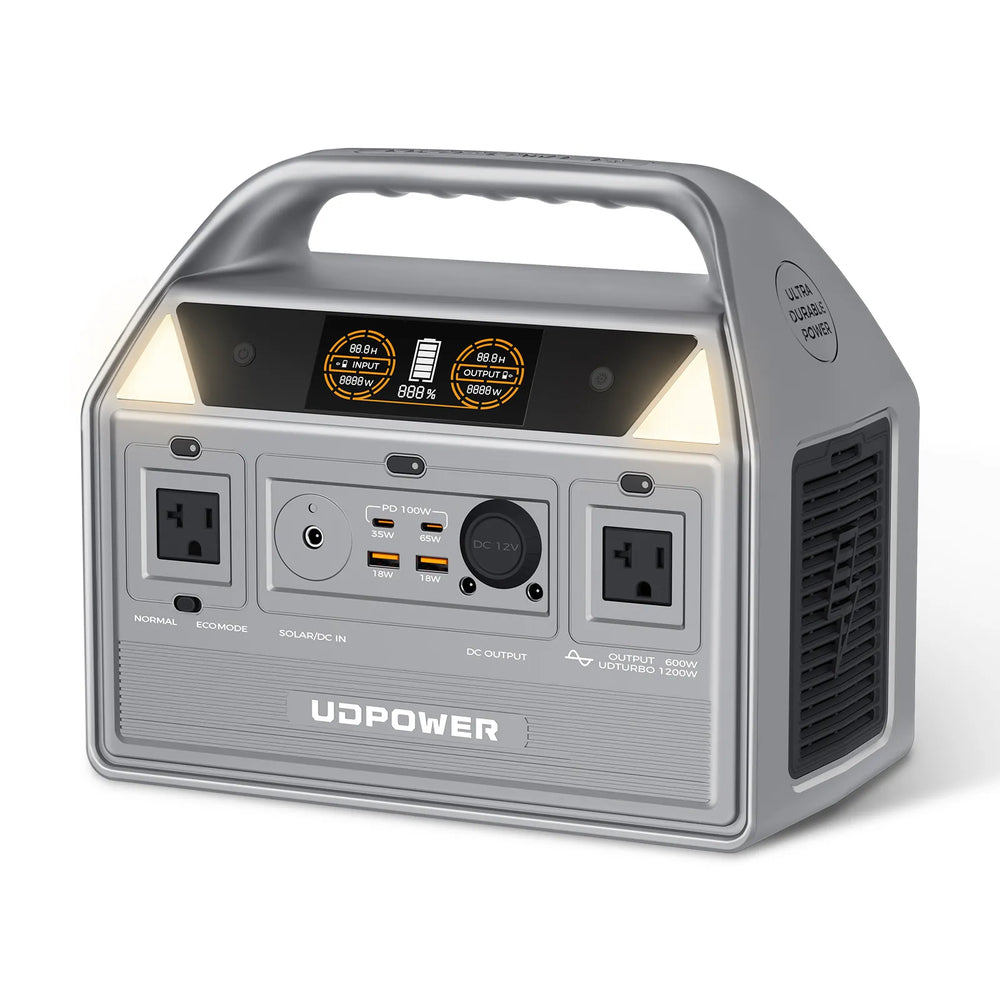
UDPOWER C600: Best Balance of Runtime and Portability
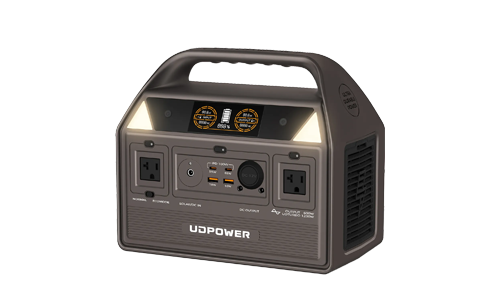
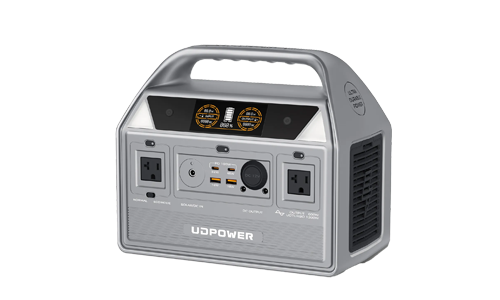
The C600 is a stronger fit for a full day of mobile work. It can support a Surface Pro, phone, hotspot, camera batteries, and other small equipment without requiring the size of a home-backup power station.
- 596Wh LiFePO4 battery capacity
- 600W rated pure sine wave AC output
- 65W USB-C PD port plus a 35W USB-C port
- Two AC outlets
- Approximately 12.3 lb
- Best for longer work sessions, road trips, camping, and outage backup
The 65W USB-C output covers the recommended 60W charging class used by many recent Surface Pro models. The AC outlets also support the original Microsoft charger.
View UDPOWER C600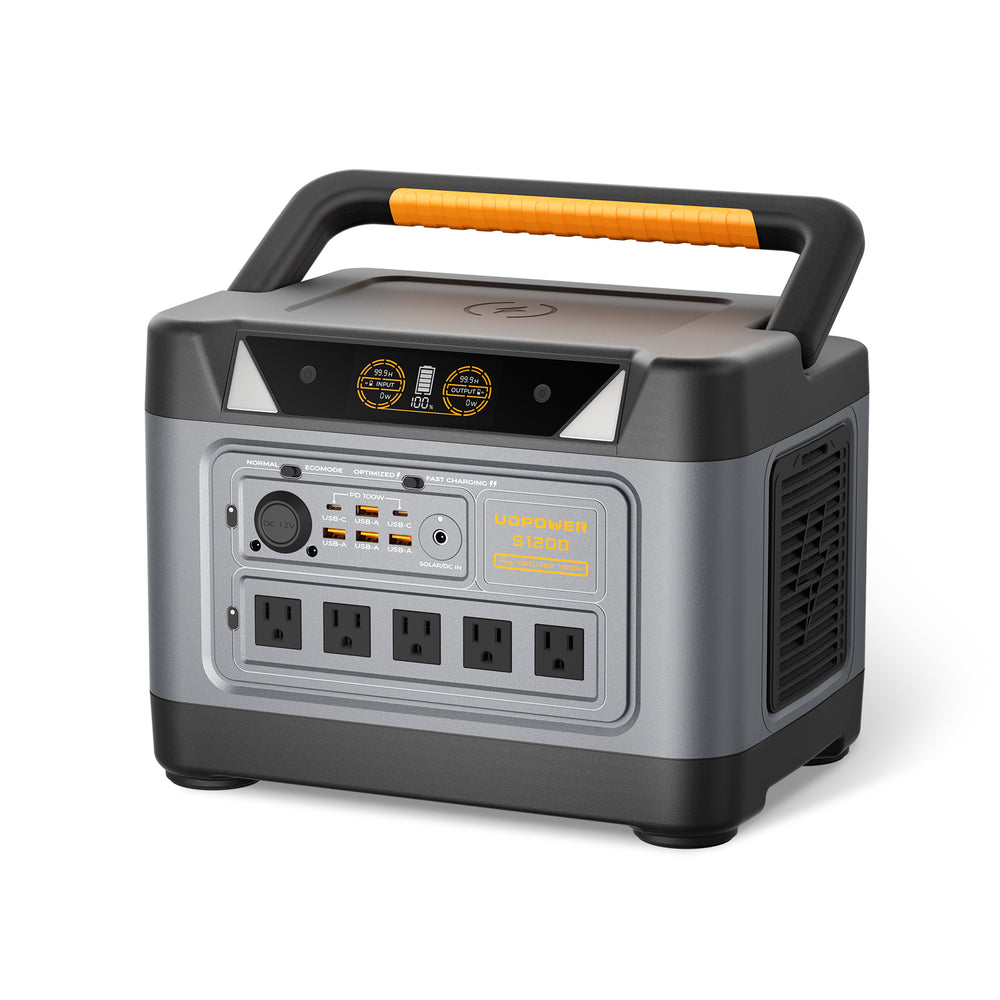
UDPOWER S1200: Best for a Complete Backup Workstation
Choose the S1200 when the Surface Pro is only one part of your setup. Its larger battery can also support a monitor, Wi-Fi router, phone chargers, lights, and other essential equipment during an outage.
- 1,190Wh LiFePO4 battery capacity
- 1,200W rated AC output and 1,800W surge output
- Two USB-C ports with up to 100W total USB-C output
- Five AC outlets on the current five-outlet version
- Approximately 26 lb
- Best for home-office backup, multi-device workstations, RVs, and extended outages
The higher-capacity battery is more important than the 1,200W output for Surface Pro use. It gives you substantially more working time and enough reserve for the rest of a normal desk setup.
View UDPOWER S1200How Long Can a Portable Power Station Power a Surface Pro?
Surface Pro power use changes throughout the day. Web browsing and writing usually draw less power than video editing, Windows updates, gaming, external displays, or charging a nearly empty battery.
For planning, calculate how long a power station can continuously supply a particular load:
The 90% factor accounts for typical conversion loss. Actual results vary with the charging method, temperature, cable, Surface workload, battery condition, screen brightness, and other devices connected to the station.
| UDPOWER model | Capacity | At a constant 30W load | At a constant 45W load | At a constant 60W load | Best Surface Pro setup | Product source |
|---|---|---|---|---|---|---|
| C400 | 256Wh | About 7.7 hours | About 5.1 hours | About 3.8 hours | One Surface Pro and small mobile accessories | C400 specifications |
| C600 | 596Wh | About 17.9 hours | About 11.9 hours | About 8.9 hours | Surface Pro, phone, hotspot, and longer work sessions | C600 specifications |
| S1200 | 1,190Wh | About 35.7 hours | About 23.8 hours | About 17.9 hours | Surface Pro, monitor, router, lighting, and backup workstation | S1200 specifications |
These figures show the estimated duration of a constant electrical load. They are not guaranteed battery-charge counts. A Surface Pro may draw less after its battery fills, more under a heavy workload, or use both its internal battery and external power during a work session.
Why Charger Wattage Is Not the Same as Constant Power Use
A 65W charger can deliver up to its rated output, but the Surface does not necessarily consume 65W every minute. Once the battery level rises and the workload becomes lighter, power draw often falls.
For a deeper explanation of laptop charger ratings versus actual use, see How Many Watts Does a Laptop Use?
How to Charge a Surface Pro in a Car
There are three practical vehicle-charging methods.
Option 1: Use a High-Wattage USB-C PD Car Charger
Plug a reputable USB-C PD vehicle charger into the car’s 12V outlet, then connect it to the Surface with a suitable USB-C cable. Check the output of the individual port—not only the total wattage printed on the adapter.
For broad compatibility with recent Surface Pro models, look for a single USB-C port capable of 60W or 65W.
Option 2: Use a Portable Power Station
Charge the power station from the vehicle while driving, then use its 65W or 100W USB-C PD port to charge the Surface. You can also plug the Microsoft charger into the station’s AC outlet.
Follow the power station’s manual before using vehicle input and device output at the same time.
Option 3: Use the Surface Charger with a Power Station’s AC Outlet
This is the most compatible vehicle setup for an older Surface Pro. The vehicle charges the power station, and the station supplies clean AC power to the original Microsoft charger.
How to Charge a Surface Pro with Solar Power
A solar panel should not be connected directly to a Surface Pro. Solar output changes with sunlight, shade, temperature, panel angle, and cloud cover. A portable power station sits between the panel and the computer, regulates the incoming power, stores it, and provides a stable USB-C or AC output.
Safe Solar Charging Setup
- Choose a solar panel compatible with the power station’s input voltage, current, connector, and wattage limits.
- Connect the solar panel to the power station’s designated solar input.
- Place the panel in direct sunlight and adjust the angle while watching the station’s input display.
- Allow the power station to collect and stabilize the energy.
- Charge the Surface Pro from the station’s 65W-or-higher USB-C PD port or from the AC outlet with the Microsoft charger.
For more detailed panel-matching and solar-input guidance, read Can You Charge a Portable Power Station with a Solar Panel?
View Solar Panels View Solar Generator KitsCan You Charge a Surface Pro While Using It?
Yes. A Surface Pro can normally charge while you work, but the result depends on the balance between incoming power and the computer’s current power use.
When the Battery Percentage Rises Normally
The charger is providing more power than the Surface needs for its current workload. The remaining power charges the internal battery.
When the Battery Percentage Barely Changes
The charger may be providing only slightly more power than the Surface is consuming. This is common with a lower-wattage charger during video calls, updates, high screen brightness, or heavier applications.
When the Battery Percentage Falls While Plugged In
The Surface is using more power than the charger can provide. The charger supplies part of the demand, and the internal battery supplies the rest.
To Improve Charging While Working
- Move from a 30W or 35W port to a 60W, 65W, or 100W USB-C PD port.
- Use a cable rated for the charger’s full output.
- Reduce display brightness.
- Disconnect unnecessary USB devices and external displays.
- Pause gaming, rendering, large downloads, or Windows updates.
- Keep the Surface and charger ventilated.
- Use the correct Microsoft power supply when troubleshooting.
Why Is My Surface Pro Charging Slowly?
| Possible cause | What happens | What to do |
|---|---|---|
| Charger wattage is too low | The Surface charges slowly, shows a warning, or loses battery during use | Use the minimum or recommended wattage for the exact model |
| Wrong power station USB-C port | A 35W port is used even though a 65W port is available | Move the cable to the station’s highest-output PD port |
| USB-C cable is under-rated | The charger cannot deliver its full supported power | Use a reputable 60W-or-higher USB-C-to-USB-C cable |
| Power is shared between ports | Connecting a second device reduces the Surface charging rate | Disconnect other devices or use ports with independent output limits |
| Heavy Surface workload | Most incoming power is used by the processor, display, and accessories | Close heavy applications or charge while the Surface is sleeping |
| Battery is already near full | Charging slows as part of normal battery management | No action is usually required |
| Smart charging is active | The battery stops around 80% and shows a heart icon | Leave it active for battery protection or temporarily choose Charge to 100% in the Surface app when supported |
| Temperature is too high or low | Charging speed is reduced to protect the battery | Move the Surface to a moderate, ventilated environment |
| Dirty or damaged connector | Charging cuts in and out or fails completely | Disconnect power, inspect the port and cable, and follow Microsoft cleaning guidance |
Why a Completely Drained Surface May Not Turn On Immediately
Microsoft states that when a drained Surface is connected to a charger providing 60W or more, it may turn on immediately. With a charger below 60W, the device may need to charge to approximately 10% before it can turn on.
This behavior can make a low-power charger appear defective even though it is slowly adding energy to the battery.
Surface Pro Not Charging: Troubleshooting Checklist
Work through these steps in order. Start with the outlet and charger before changing drivers or Windows settings.
- Test the power source. Try another wall outlet or switch the portable power station’s AC or DC output off and back on.
- Check the charger wattage. Confirm that it meets Microsoft’s requirement for the model.
- Check the correct port. On a power station, use the 65W or 100W USB-C port rather than a 20W or 35W port.
- Inspect the cable. Look for bent connectors, damaged insulation, loose ends, or an unmarked low-power cable.
- Reconnect everything. Unplug the charger from the power source and Surface, wait at least 10 seconds, and reconnect it.
- Try another USB-C port. On models with two charging-capable USB-C ports, test the other port.
- Restart the Surface. A restart can clear temporary charging or battery-status errors.
- Disconnect accessories. Remove external drives, hubs, displays, and other devices that may be consuming power.
- Check the battery icon. A heart icon near 80% usually means Smart Charging, not a failed charger.
- Install Windows and Surface updates. Firmware updates can address charging and battery-management problems.
What the Battery Icons Can Mean
| What you see | Likely meaning | Recommended action |
|---|---|---|
| Charging symbol | The Surface recognizes the charger and is charging | Allow it to continue |
| Exclamation symbol | The Surface is receiving power, but it may not be enough to charge normally | Use a charger that meets the official wattage requirement |
| Heart symbol at 80% | Smart Charging is protecting the battery | Leave it enabled or temporarily select Charge to 100% in the Surface app when available |
| Charging stops at 50% | Battery Limit mode may be enabled | Check the Surface battery settings or UEFI configuration for supported models |
| No charging symbol | The charger, cable, port, output switch, or power source may not be working | Test each part separately, starting with another power source |
For Microsoft’s full troubleshooting procedure, see Surface battery won’t charge or Surface won’t run on battery.
Surface Pro Battery Care and Smart Charging
Keeping a Surface Pro plugged in all day is convenient, but prolonged time at a high charge level—especially in warm conditions—can accelerate battery aging. Current Surface models include battery-management features designed to reduce that stress.
Why Your Surface May Stop Charging at 80%
Microsoft Smart Charging can automatically limit the battery to 80% when it detects that the device has been plugged in for long periods or used at elevated temperatures. A heart icon appears over the battery icon when this feature is active.
This is normal behavior, not necessarily a battery or charger failure.
How to Temporarily Charge to 100%
- Open the Surface app in Windows.
- Select Battery & charging.
- Find the Smart Charging section.
- Select Charge to 100% if the option is available for your model.
Charging to 100% is useful before a flight, long meeting, road trip, or off-grid work session. For ordinary desk use, leave Smart Charging active when possible.
Everyday Battery-Care Habits
- Keep vents clear while charging.
- Avoid charging on blankets, sofas, or other surfaces that trap heat.
- Do not use visibly damaged cables or connectors.
- Use the Surface app and Windows Update to keep battery firmware current.
- Do not repeatedly drain the battery to 0% when it is unnecessary.
- Use the correct wattage rather than relying on a low-power phone charger every day.
- Allow a very hot or cold Surface to return to a moderate temperature before fast charging.
Microsoft’s current Smart Charging instructions are available on its Smart charging on Surface support page.
Common Surface Pro Charging Mistakes
Using a 20W Phone Charger
A small phone charger may fit the USB-C port but fail to meet the Surface’s minimum wattage. It may charge only while the Surface is sleeping, show a low-power warning, or fail to charge at all.
Using the 35W Port on a Dual-USB-C Power Station
The Surface may need 39W or 60W, depending on the model. Use the station’s 65W or 100W port and reserve the lower-output port for a phone or accessory.
Confusing Total Charger Output with Single-Port Output
A car charger or wall charger may advertise 100W total while providing only 30W or 45W from the port you are using. Check the individual port specifications.
Using a Cable That Cannot Carry the Required Power
The charger and Surface can support 60W, but a lower-rated cable may restrict the negotiated output. Use a clearly rated USB-C cable from a reputable source.
Connecting a Solar Panel Directly to the Surface
A solar panel is not a regulated Surface charger. Route solar power through a compatible portable power station or another properly designed solar charge system.
Expecting Surface Connect and USB-C to Charge Together
Connecting both does not double the charging speed. Microsoft states that the Surface will use the Surface Connect charger when both are attached.
Frequently Asked Questions
Can every Surface Pro charge through USB-C?
No. The Surface Pro 7 and many newer models support USB-C charging, while the Surface Pro 6 and earlier models generally require Surface Connect or the original Surface charging connector. The 12-inch Surface Pro is USB-C-only.
Can I charge a Surface Pro with a phone charger?
Only when the phone charger supports USB-C Power Delivery and meets the Surface model’s required wattage. Many phone chargers provide only 18W, 20W, or 30W, which may be too weak for normal Surface Pro use.
Is a 65W charger enough for a Surface Pro?
A quality 65W USB-C PD charger is enough for most current Surface Pro models, including those for which Microsoft recommends 60W. Check the exact model before buying.
Can I use a 100W USB-C charger with a Surface Pro?
Yes. A standards-compliant USB-C PD charger and suitable cable will negotiate a supported power level with the Surface. The Surface does not take the full 100W unless it supports and requests that amount.
Why does my Surface say it is plugged in but not charging?
The charger may be below the required wattage, the cable may restrict output, the Surface may be under a heavy workload, the port may be dirty or damaged, or a battery-protection feature may be active. Start by using the correct Microsoft charger or a properly rated USB-C PD charger.
Why does my Surface Pro stop charging at 80%?
Smart Charging may be active. Microsoft uses this feature to reduce battery stress when the Surface remains plugged in for long periods or operates at elevated temperatures. A heart icon usually appears over the battery icon.
Can I charge a Surface Pro from a portable power station?
Yes. Use a 60W, 65W, or 100W USB-C PD output on compatible Surface models, or plug the original Microsoft charger into the power station’s pure sine wave AC outlet.
Can a Surface Pro charge from a car outlet?
Yes, with a properly rated USB-C PD car charger or through a portable power station. Do not connect the Surface directly to unregulated vehicle wiring.
Can I charge a Surface Pro directly from a solar panel?
No. Use the panel to charge a compatible portable power station, then charge the Surface from the station’s regulated USB-C PD or AC output.
Is USB-C charging more efficient than using the AC charger?
Direct USB-C charging can be more efficient because it avoids powering an AC inverter and then converting the power again through the Surface wall adapter. Actual efficiency varies by charger, power station, cable, and workload.
Can I use the Surface while it is charging from a power station?
Yes. The battery will rise normally when incoming power exceeds the Surface’s current consumption. Under a heavy workload or with an underpowered charger, the battery may charge slowly or continue to fall.
What is the easiest off-grid Surface Pro setup?
Use a portable power station with a 65W-or-higher USB-C PD port and pure sine wave AC outlets. Add a compatible folding solar panel when you need to recharge the power station away from the grid.
How This Guide Was Verified
Surface Pro model wattages and charging connections were checked against Microsoft’s current Surface Pro charging requirements. USB-C behavior, fast-charging conditions, dual-charger behavior, and drained-battery startup guidance were checked against Microsoft’s USB-C and fast-charging documentation.
UDPOWER battery capacities, AC output ratings, USB-C output specifications, product weights, and official product images were taken from the current UDPOWER product pages. Runtime examples use a 90% conversion-efficiency planning factor.
Choose the Right Backup Power for Your Surface Pro
For one Surface Pro and a light travel setup, start with the compact C400. Choose the C600 for longer work sessions and additional mobile devices. For a complete home-office backup with a monitor, Wi-Fi router, lighting, and multiple chargers, the S1200 provides substantially more runtime.
View Portable Power Stations View Solar Generator Kits Get the Device Sizing GuideRelated Articles