How to Charge PS5 Controller
This 2025 guide explains every safe way to charge Sony’s PS5 DualSense controller, including via the PS5 (with Rest Mode USB power), reputable 5 V wall chargers, PCs, licensed docks, and portable power stations. It clarifies recommended voltage (5 V), typical charge time (about 2–2.5 hours), and how to avoid non-negotiated 9 V/12 V adapters. You’ll find step-by-step methods, battery-care practices to extend lifespan (avoid deep discharges, keep cool, store at mid-charge), and quick troubleshooting for common issues like cable/port faults. The guide also recommends UDPOWER portable power stations (C400 and S1200) as off-grid or outage backups, highlighting that their 5 V USB ports charge controllers efficiently without using the AC inverter. A brief FAQ covers playing while charging, cable choices, and enabling USB power in Rest Mode on newer PS5 models.
Fast, safe, and battery-friendly charging methods for the DualSense™—plus pro tips, common fixes, and portable power picks.

Charging standards & what’s safe (2025)
Official behavior
Enable USB power in Rest Mode, and on CFI-2000 (Slim) families you can use Adaptive Charging to reduce battery wear.
Safe power sources
- PS5 USB ports (set Supply Power to USB Ports in Rest Mode).
- 5 V USB wall chargers (1–2.4 A or higher rated).
- PC/Mac USB ports.
- Licensed charging docks with 5 V input.
- USB ports on portable power stations (5 V output).
All safe ways to charge a PS5 controller

A) Using your PS5 console (most straightforward)
- Connect the DualSense with a USB-C cable to a PS5 USB port.
- Power on PS5 (or place it in Rest Mode with USB power enabled).
- Confirm the orange pulse on the controller and the on-screen battery icon.
Rest Mode path: Settings → System → Power Saving → Features Available in Rest Mode → Supply Power to USB Ports = Always or 3 Hours. On the 2023–present slim (CFI-2000), you may also see Adaptive.
B) Using a USB wall charger
- Look for a reputable 5 V USB charger. Higher amp ratings are fine; the controller draws what it needs.
- Use a quality USB-C cable (charge + data preferred).
C) Using a PC or laptop
USB-A or USB-C ports provide 5 V and will charge while you work. Front-panel desktop ports can be less stable; plug into a rear motherboard port if you see dropouts.
D) Using a charging dock
Official and licensed DualSense docks regulate for 5 V input. Follow the dock’s LEDs to confirm full charge before removing.

E) Using a portable power station (travel/emergency)
Any station with standard 5 V USB outputs works. Plug the controller’s USB-C cable into a USB-A/C port and charge normally—no AC inverter required.
How long does charging take?
From low, a DualSense typically reaches full in about 2–2.5 hours. It may take longer from low-power USB ports or if you’re playing while charging.
Battery-care tips to extend lifespan
- Avoid deep discharges; top up between 20–80% when convenient.
- Let the controller cool to room temperature before charging after long play sessions.
- Store around 40–60% if unused for weeks; give it a full cycle at least yearly.
- Use short, good-quality cables and keep the USB-C port lint-free.
- On supported PS5 models, enable Adaptive Charging to reduce battery wear during long rest periods.
If your controller won’t charge
Quick fixes
- Try another USB-C cable and another 5 V source (PS5, wall charger, PC).
- Inspect and gently clean the USB-C port (compressed air can help).
- Power-cycle your PS5 and update controller firmware in Accessories.
When to repair
- Loose or damaged port, swollen battery, or persistent failure across cables/sources.
- Seek professional repair or a battery replacement if out of warranty.
Portable power picks (UDPOWER)
For off-grid weekends or outage backup, a compact LiFePO₄ power station keeps controllers, headsets, phones—even your console and TV—running. These UDPOWER options provide dependable 5 V USB outputs plus AC when needed:
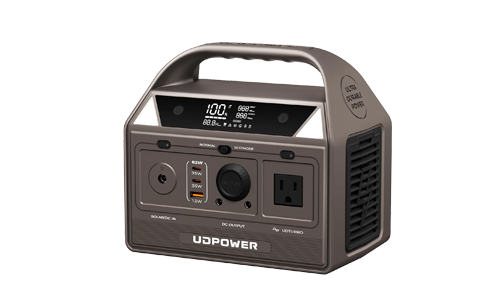
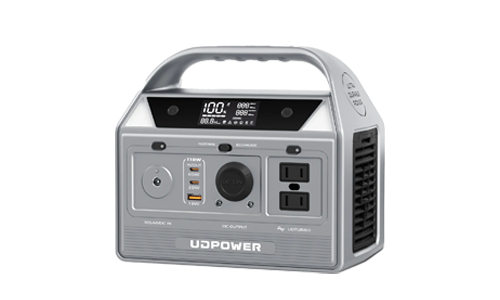
UDPOWER C400 — ultra-portable

Pocketable backup for multiple controllers and phones without using the inverter.
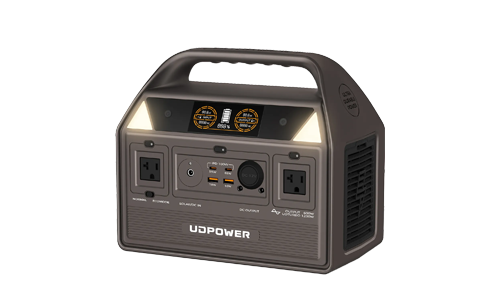
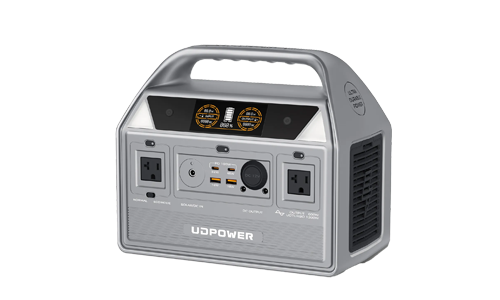
UDPOWER S1200 — home/RV + gaming backup

Runs your router/TV/console during outages while the USB ports keep controllers topped up quietly.
FAQ
Can I use a phone charger?
Yes—if it outputs 5 V over USB. The controller negotiates safe charging and draws only what it needs.
Can I play while charging?
Yes, but it may extend charge time. Use a short, sturdy cable to reduce dropouts.
What cable should I buy in 2025?
A reliable USB-C to USB-A/C cable that supports data + power. If your charger is USB-C only, use a direct USB-C to USB-C cable.
How do I enable charging in Rest Mode?
On PS5, go to Settings → System → Power Saving → Features Available in Rest Mode, then set Supply Power to USB Ports to Always or 3 Hours (or Adaptive on supported models).
Related Articles